by
by In this tutorial, you will learn how to setup Spark to run in IntelliJ with Scala. Then we would create a simple HelloWorld application in IntelliJ.
Create a Spark Project and Add Dependencies
Step 1 – First you need to setup Scala with IntelliJ. See the steps here.
Step 2 – Create a new Scala Project in IntelliJ
Step 3 – Add Spark dependencies:
Open the build.sbt file and add the Spark Core and Spark SQL and Streaming dependencies.
the complete content of my build.sbt file is shown below
name := "FirstProg"

version := "0.1"

scalaVersion := "2.13.8"

libraryDependencies ++= Seq(
  "org.apache.spark" %% "spark-core" % "3.2.1",
  "org.apache.spark" %% "spark-sql" % "3.2.1",
  "org.apache.spark" %% "spark-streaming" % "3.2.1",
)
You’ll need to refresh the sbt to download the dependencies.
Create an Application
Create a new Scala Class in IntelliJ. Choose the type to be Object.
The content of this file is as follows
package org.kindsonthegenius

import org.apache.spark.sql.SparkSession

object SparkSessionTest extends App{
  val spark = SparkSession.builder()
    .master("local[1]")
    .appName("Spark Tutorial by Kindson")
    .getOrCreate()

  println("************** Your First SparkContext ***************")
  println("App Name - " + spark.sparkContext.appName)
  println("Deploy Mode - " + spark.sparkContext.deployMode)
  println("Master - " +spark.sparkContext.master)

  val sparkSession2 = SparkSession
    .builder.master("local[1]")
    .appName("Spark Tutorial by Kindson")
    .getOrCreate

  println("************* Your Second Spark Context ***************")
  println("APP Name - " + sparkSession2.sparkContext.appName)
  println("Deploy Mode - " + sparkSession2.sparkContext.deployMode)
  println("Master - " + sparkSession2.sparkContext.master)
}
You can now run the program and you will have the output shown below
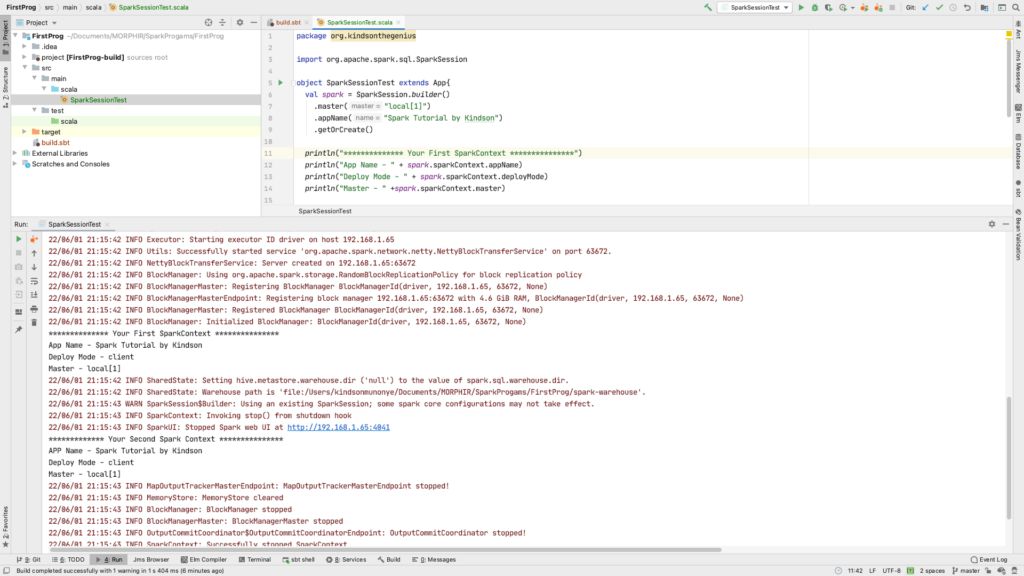
I recommend you watch the video if you have any challenges. You can also leave me a comment below.