by
by In this tutorial, you will learn how create a basic spark job. We’ll be using Spark Core. This is the base of the Spark project. It provides functionality for distributed task dispatching, scheduling and basic I/O operations.
We would write as simple spark program (Spark Job) that processes a text file. We would also see how to use the Spark Web GUI to view status of jobs, storage and other parameters. We would also demonstrate how the Spark RDD(Resilient Distributed Datasets) works.
Content
- Start Spark Shell and Create a Text File
- Create an RDD
- Execute Work Count Transformation
- Cache and Save the RDD
- View the Output
1. Start Spark Shell and Create a Text File
By now you should have installed the Spark and can start the Spark Shell.
Step 1 – Start the Spark Shell
Step 2 – Create a text file (I name it inputfile.txt) in the home directory where the spark shell started from
Have this content in the text file
People can be prejudiced not only toward those of another nationality,
race, tribe, or language but also toward those of a different religion,
gender, or social class. Some judge people negatively based on their age,
education, disabilities, or physical appearance.
Yet, they still feel that they are not prejudiced.
2. Create an RDD
So we would read this file using Spark-Scala API and create an RDD from it.
Execute the command below:
val fileRDD = sc.textFile("inputfile.txt")
This command reads a text file from the given path and creates an RDD named fileRDD. In this case, the file is expected to be in the current location.
3. Execute Word Count Transformation
We would like to have a word count of each word in the file. To do this we would use three functions:
flatmap() – split the content of the file by space
map() – get the word count
reduceByKey(_+_) – add values of similar keys
The complete command is given below:
val wordCounts = fileRDD.flatMap(line => line.split(" ")).map(word => (word, 1)).reduceByKey(_+_);
This command is a transformation applied to the fileRDD and creates a new RDD. If you want to see this new RDD (though it would not make much sense to you!), you can used the command below:
wordCounts.toDebugString
4. Cache and Save the RDD
Now we want to cache our transformed RDD and also persist it to storage.
The command below uses the cache() function(persist can also be used) to persist the RDD in memory
wordCounts.cache
Use the command below to apply an action to the RDD. Here, we want to save the output of the transformation to a text file. This is saved in a folder named outputDir.
wordCounts.saveAsTextFile("outputDir")
5. View the Output
Now, you want to view the ouptutfile. We also want to see the status of the Spark job in the GUI.
Step 1 – Open a new terminal and navigate into the outputDir folder
Step 2 – Use the the command below to view the content
ls -1
You will see the output
part-00000
part-00001
_SUCCESS
Step 3 – You can then use the cat command to view the content of each file
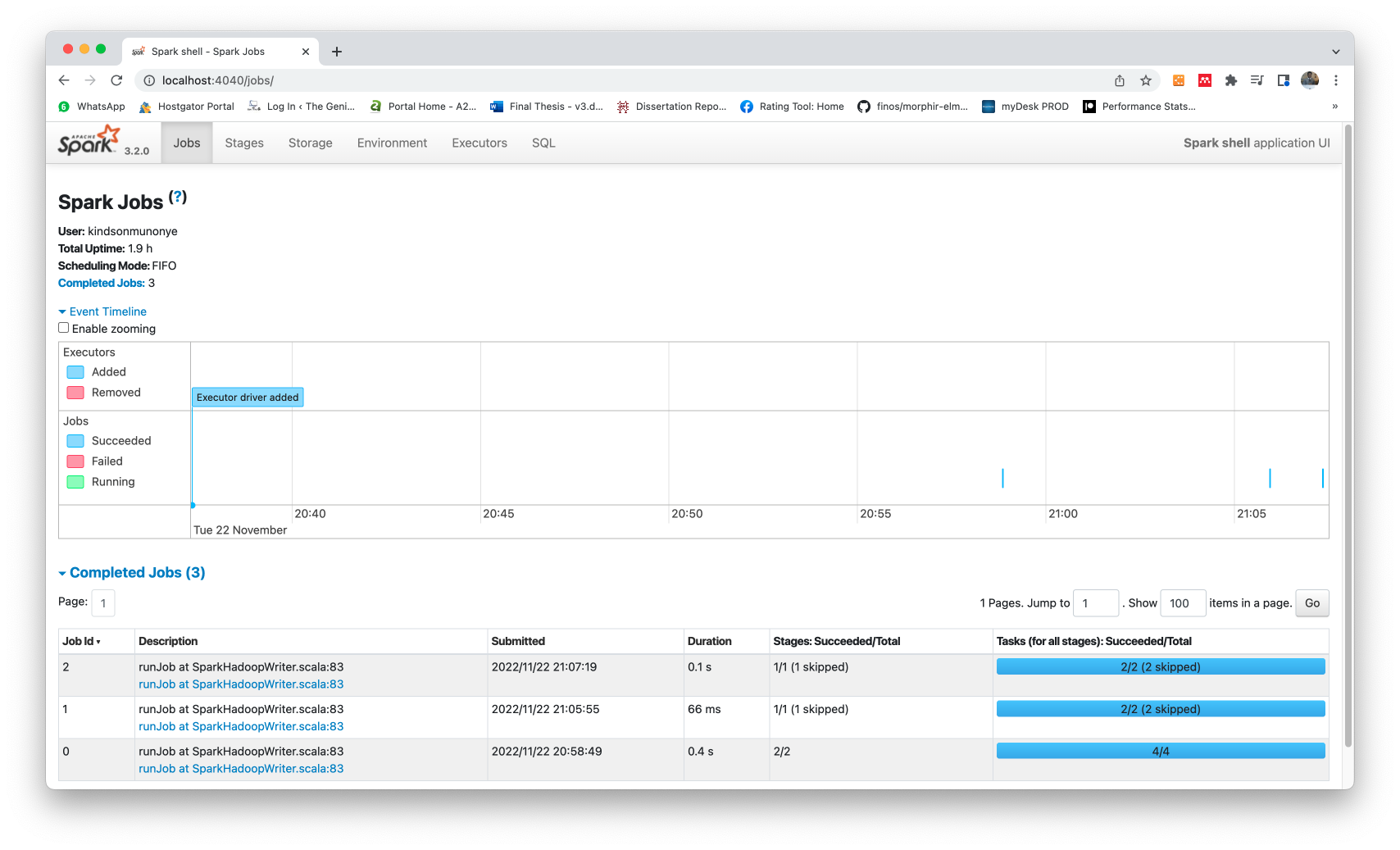
Finally, you can view the status on the Web GUI using the the link:
http://localhost:4040
The GUI output is given below: