 by
by In this lesson you will write your first program in Scala. I would also explain to you the basic syntax and structure of a Scala program. I do recommend you follow along in the video tutorial available in my YouTube Channel.
The practicals in this lesson would be based on IntelliJ IDE.
We would cover the following:
- Creating a Scala Project
- Writing a Scala Program
- Running a Scala Program
- Running a Scala Program with Scala Worksheet
1. Creating a Scala Project
Open IntelliJ and create a new Project using the settings in the screenshot below:
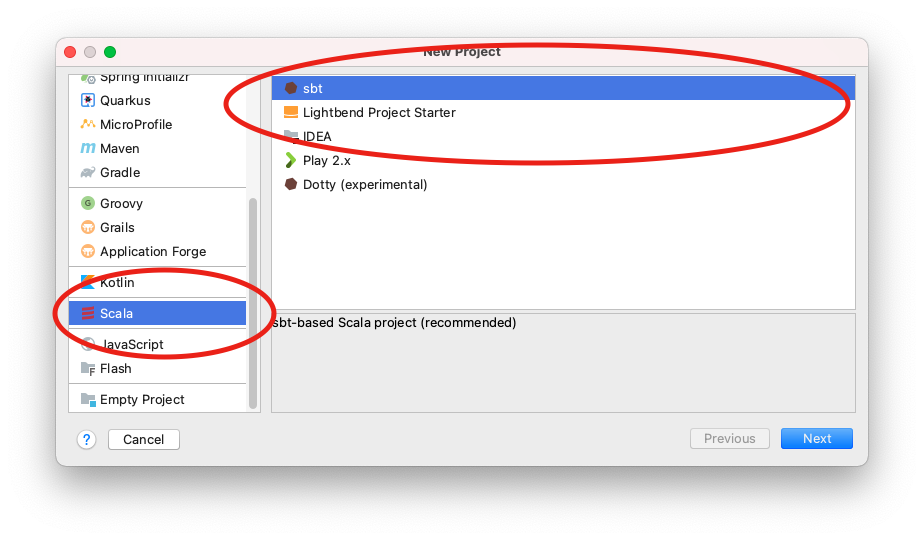
Click on Next, specify a directory and a name for the project. For me, I name it SecondProgram
2. Writing a Scala Program
Creating a program in Scala is similar to creating a program in Java. We would create a package and then create a scala file inside the package. The file we would create would have the extension .scala. But first, you need to add Framework support to your project
Step 1 – Right-click on your project and select Add Framework Support…Select Scala from the list and click Ok
Step 2 – Create a new package. I name it tutorial
Step 3 – Right-click on the tutorial package you create and choose New Scala class
Step 4 – Name the class Main and change the type to object
Step 5 – Enter the following code inside the class:
//Your First Progam
object Main extends App{
  val ages = Seq(89,56,32,65)
  var name = "Othniel Muno"
  println(s"The oldest of all is ${ages.max}")
  println(s"His name is ${name}")
}
3. Running the Scala Program
To run the program, follow the steps below
Step 1 – From the Run menu, click on Edit configuration.
Step 2 – In the Name field, enter Run Scala Program (you can use a different name as well).
Step 3 – In the Tasks field, enter ~run. The tilde(~) would cause sbt to trigger a rebuild of the program each time a change is detected
At this point, the configuration window will be as shown below:
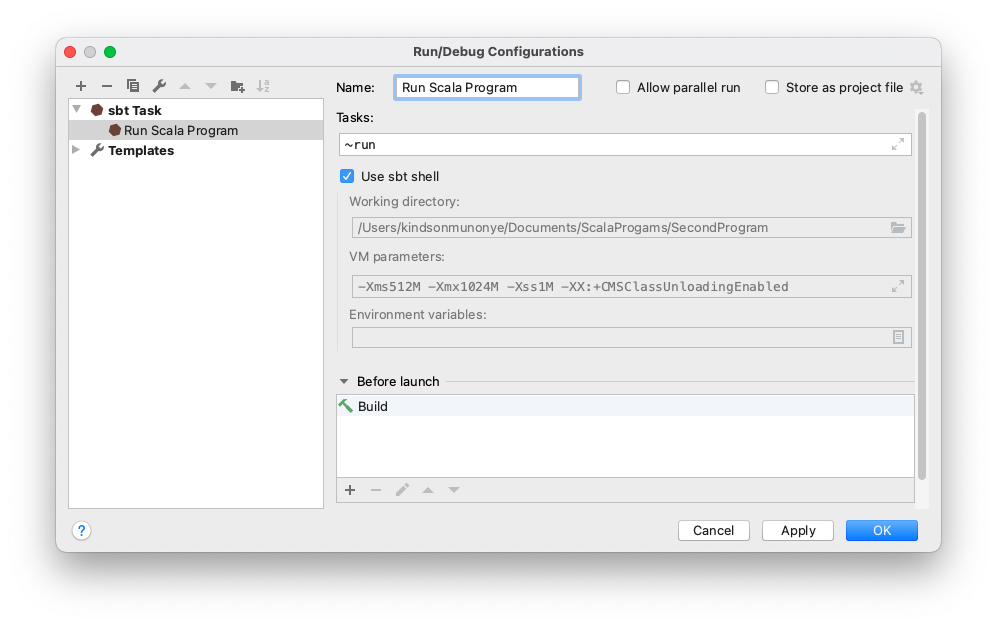
Step 5 – Click OK to Save your configuration
Step 6 – You can now click on the Run button to run the program. You can see the output in the sbt shell window at the lower side of IDE.
4. Running Scala Program with Scala Worksheet
Scala Worksheet is a feature that helps you run your Scala program in an interactive manner. So you are able to enter an expression and have it evaluated immediately and the output is shown in an output window.
To use Scala worksheet, follow the steps below:
Step 1 – Right-click on the tutorial package and select Scala Worksheet
Step 2 – Enter the following code:
val ages = Seq(26,74,54,78)
var name = "Angus Uba"
println(s"The oldest person is ${ages.max}")
println(s"His name is ${name}")
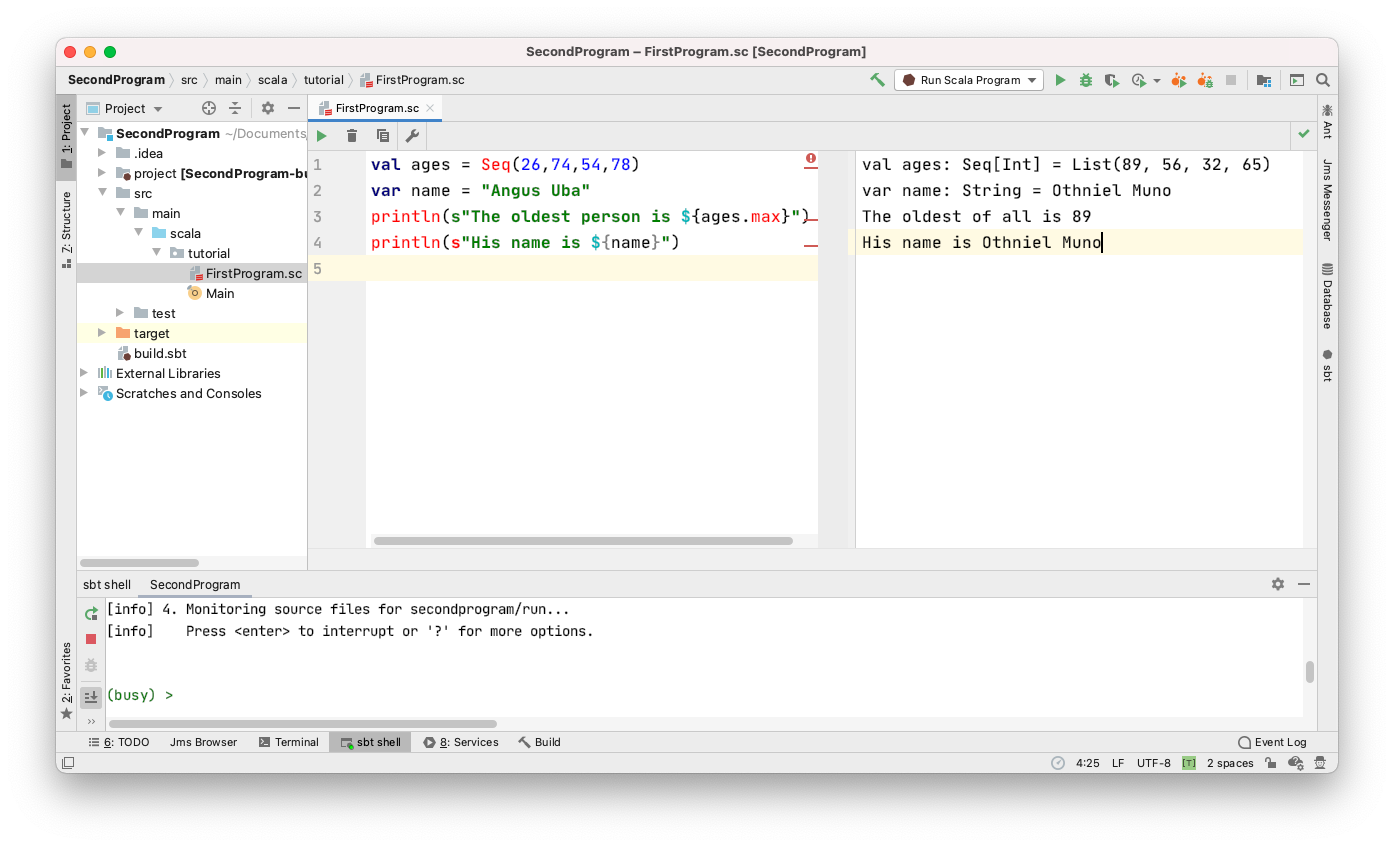
Step 3 – Click on the green button to run. The code is executed and the output is shown as below:
I recommend taking some time to enter different expression just to see the output. Once you play around a bit with Scala Worksheet, you’ll get used to it. However in subsequent tutorials, we would be writing Scala classes.
